
Material Consumption & Material Status
Dependent Demand & Material Consumption
All recommendations are always based on your customer demand. Based on your sales forecast, we calculate the Ideal Stock for all products in your store. We apply a similar logic to calculate the Ideal Stock for a material. Based on your stores' sales forecast, we can calculate the perfect (ideal) order proposal, by understanding how much you need to make your sales work.
When you create a Bill of Material, you can link multiple Materials to multiple products. When you have hundreds of products, and hundreds of materials and components, keeping track of what you need to order can get difficult quickly.
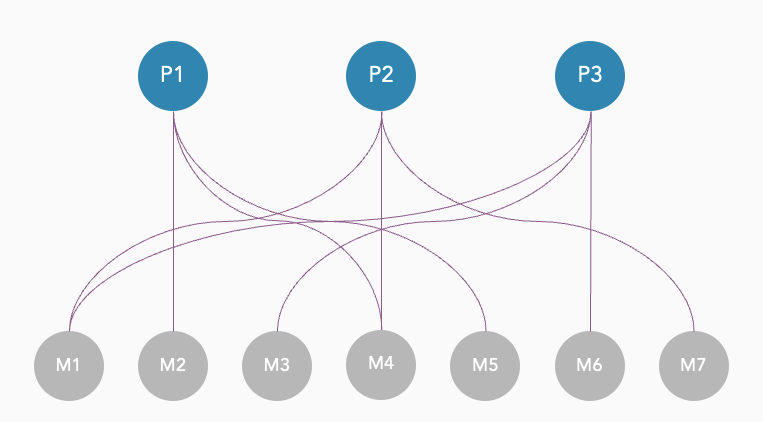
That's where Shelf Planner helps you to make sense of it all. The industry term for this is Dependent Demand and in this article, we will take a step by step guide on how to create materials in the app, link them to products, generate the dependent demand and get order recommendations for all SKU's in your store.
How the Dependent Demand is generated
In this guide, we will use two items that share materials, in this case a 'glass bottle' that is
When you have created and saved a Bill of Material, the system will automatically generate a forecast for all materials and components.
On the main pages of the BOM, you can see the Material Status - for the item we have created in this example, the Material Status is set as 'Critical':
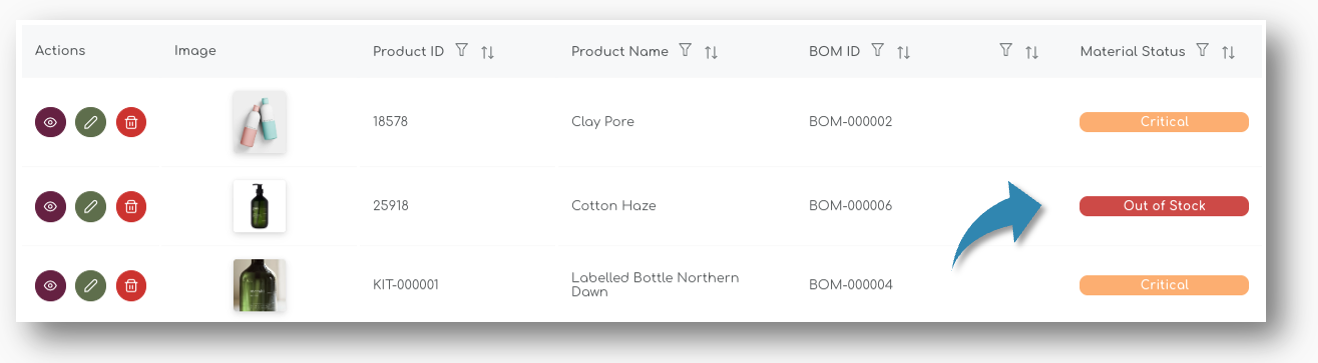
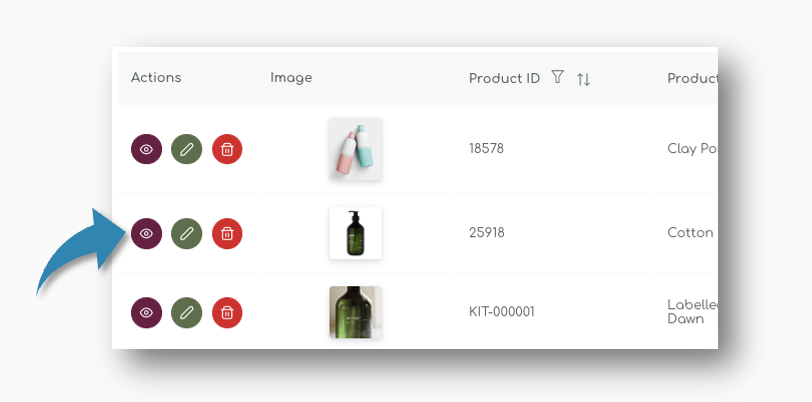
You can look at the BOM and the status of each individual material by clicking the 'eye' icon left of the table:
Material Status
For each of the line items, the Material Status is shown. Within each BOM, material statuses can vary, but the Material Status for the Finished Good is always based on the material with the lowest quantity available.
In this example, you technically cannot produce this item, as one of the materials is out of stock:
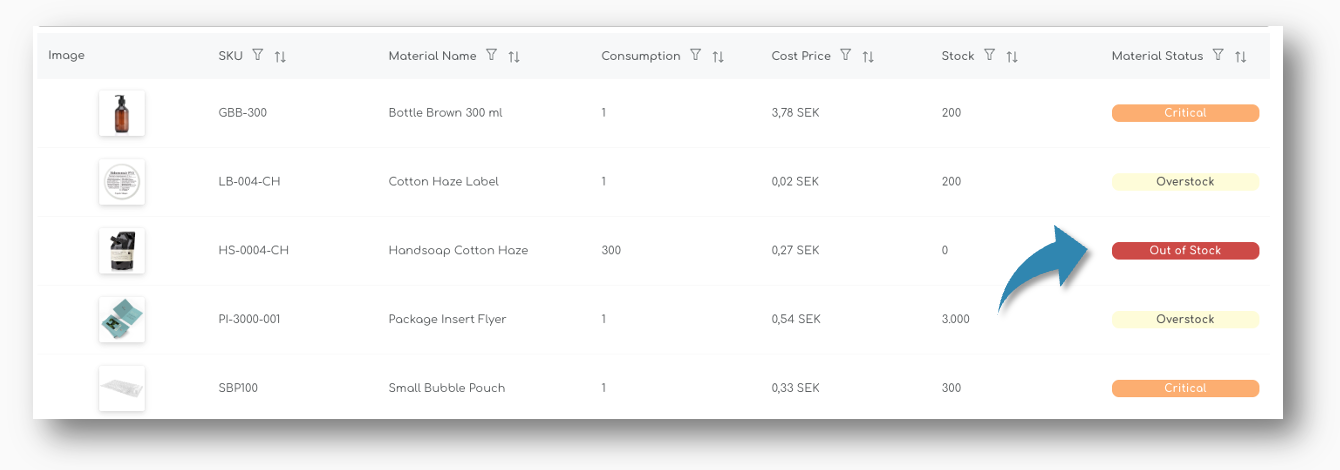
Two other Materials are classified as 'Critical', which means that there is not sufficient enough stock on hand to cover the future sales.
Stock Status Definitions
Your stock status is automatically updated based on how much stock you have compared to your Ideal Stock level (the optimal amount you want to keep in stock, based on your future sales forecast).
| Material Status | What it Means |
|---|---|
| Sufficient | You have enough stock to meet your Ideal Stock level. No action is needed. |
| Low Stock | Your stock is below the Ideal Stock level but still covers more than half of it. Consider placing an order soon. |
| Critical | Your stock is less than half of your Ideal Stock level. Order now to avoid stockouts and to avoid lost sales. |
| Out of Stock | You have no stock left. Immediate action is required to replenish your inventory. |
In the Materials section, select the material you want to track.
The system will display the current stock quantity, incoming stock, and other relevant details.
Use this information to ensure that you have sufficient stock for production and to plan for replenishment.
Best Practices for Managing Materials
Regularly Update Material Information: Ensure that material details, such as stock quantities and lead times, are regularly updated to reflect the current status.
Monitor Stock Levels: Use the real-time tracking feature to monitor stock levels and avoid stockouts or overstocking.
Utilize Reports: Generate and analyze reports to gain insights into material usage, availability, and cost management.
Train Your Team: Ensure that your team is trained on how to create and manage materials effectively. This will help in maximizing the benefits of the feature and improving overall efficiency.
Conclusion
Creating and managing materials in Shelf Planner is a straightforward process that can significantly enhance your inventory management and production processes. By providing a structured way to manage and track materials, this feature helps in improving accuracy, reducing production delays, and optimizing cost management.
If you have any questions or need further assistance, please contact our support team. We are here to help you make the most of the materials management feature in Shelf Planner!Type your content here.