
Subscription & Billing
1. WooCommerce License
Shelf Planner does not provide or manage WooCommerce licenses. Your WooCommerce license is issued and managed by WooCommerce.com.
Key Points:
- Ensure your WooCommerce license is active and covers all stores where you use Shelf Planner.
- Check your license status at WooCommerce.com.
Renewing or Upgrading:
- Visit WooCommerce.com > "My Account" > "Subscriptions".
- Follow the prompts to renew or upgrade.
Support:
- For license issues, contact WooCommerce Support:
- WooCommerce Support Portal
2. PrestaShop and OpenCart: Stripe Customer Portal
For PrestaShop and OpenCart, Shelf Planner uses Stripe for billing and subscription management. You can access your billing details directly in the Shelf Planner app.
Accessing Your Billing Portal:
Log in to your my.shelfplanner.com
Go to "Subscriptions & Billing" in your account settings:
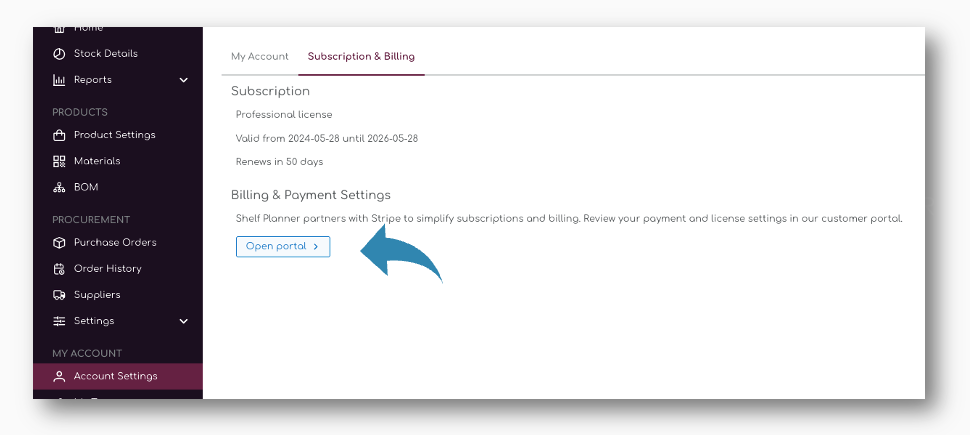
Click "Open portal" to access your Stripe Customer Portal. This portal will open in a new window and from here you can manage your subscription, update your billing information, or download invoices.
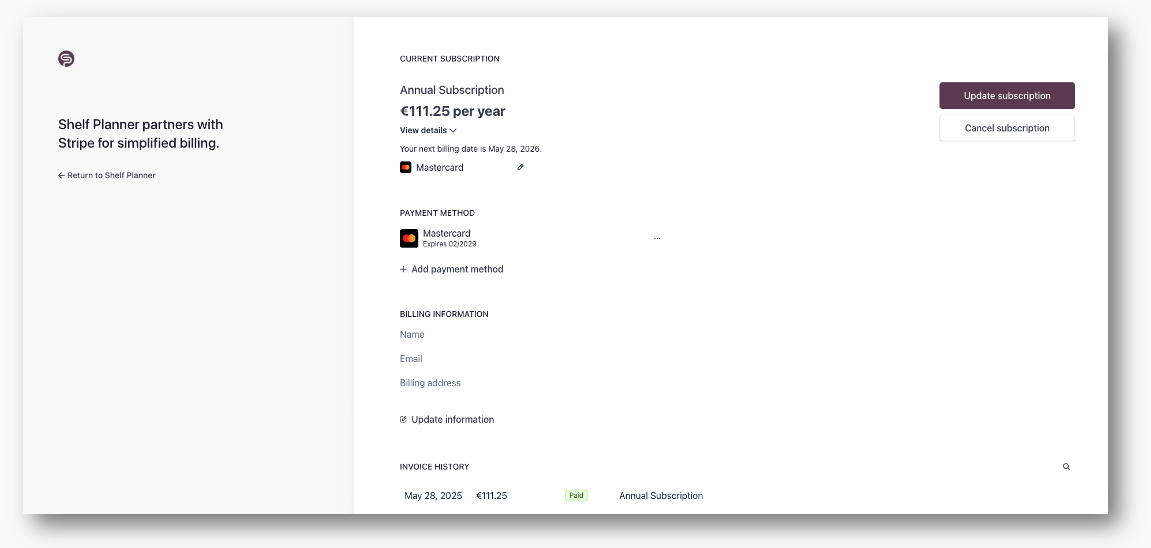
In the Stripe Portal, You Can:
- View and download invoices.
- Update payment methods.
- Change or cancel your subscription plan.
Support:
For billing or subscription questions, contact Shelf Planner Support directly:
Email: support@shelfplanner.com
3. Troubleshooting
WooCommerce:
If Shelf Planner shows a license error, verify your license status at WooCommerce.com.
PrestaShop/OpenCart:
If you can’t access the Stripe portal, ensure you’re logged in to the correct Shelf Planner account.
For issues with payments or subscriptions, contact Shelf Planner Support.