
Split Purchase Orders
When you have created a Purchase Order, but your supplier is delivering the order in seperate shipments, you can split the purchase order in the Order History.
We refer to these as 'parent' and 'child' PO's, as a newly created Purchase Order is always linked to the original PO.
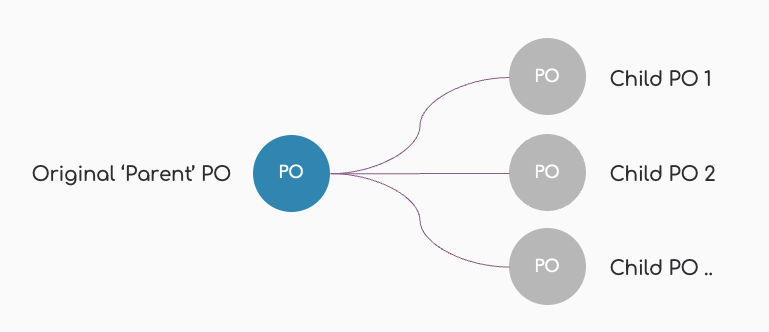
There is no limit to how many 'child' PO's you can create.
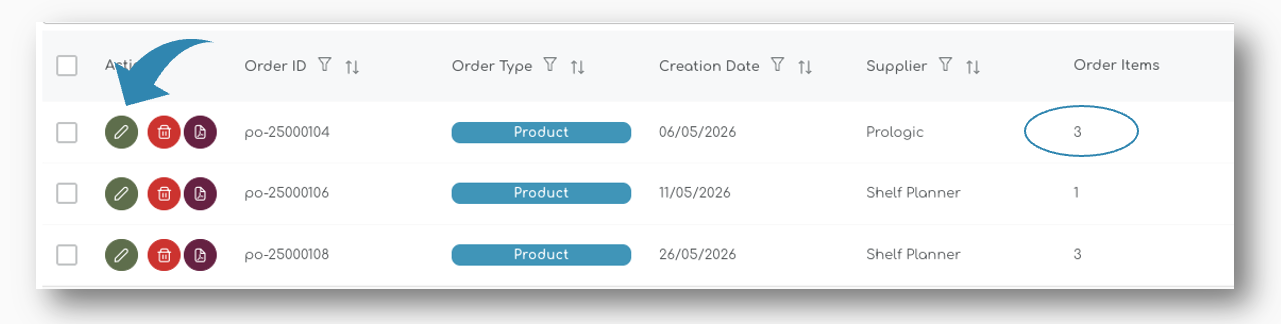
1. Open Purchase Order
Open the placed order with the 'Edit' icon:
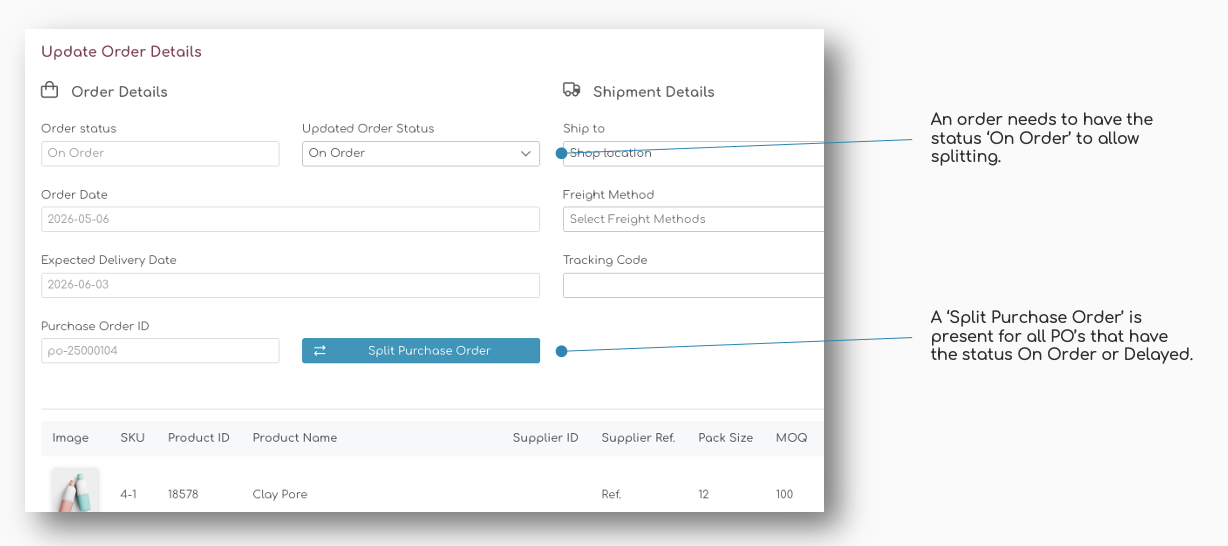
In the Purchase Order details, a 'Split Purchase order button is shown for all placed orders:
2. Split Purchase Order
A pop up appears when you press the 'Split Purchase Order'. This screen shows the original product information and allows you to define the new delivery date for the new PO.
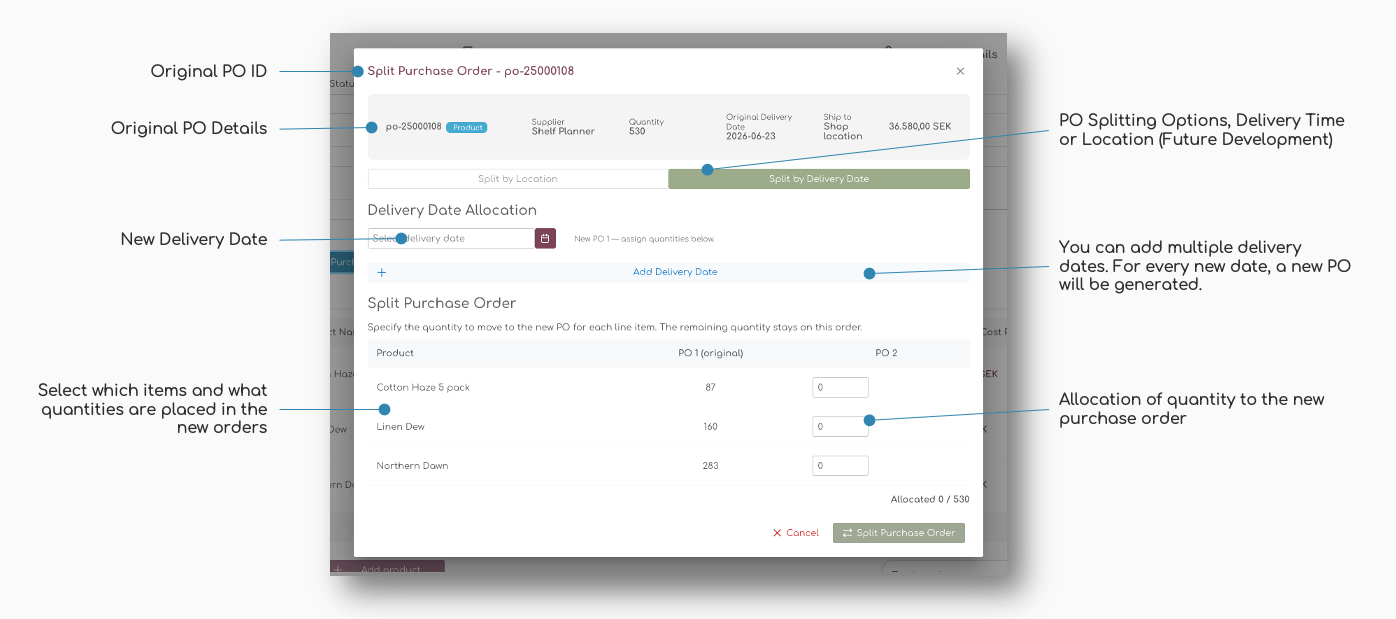
Note: In a auture release you will also be able to create a new PO with addtional or changing shipment locations.
3. Select Delivery Date
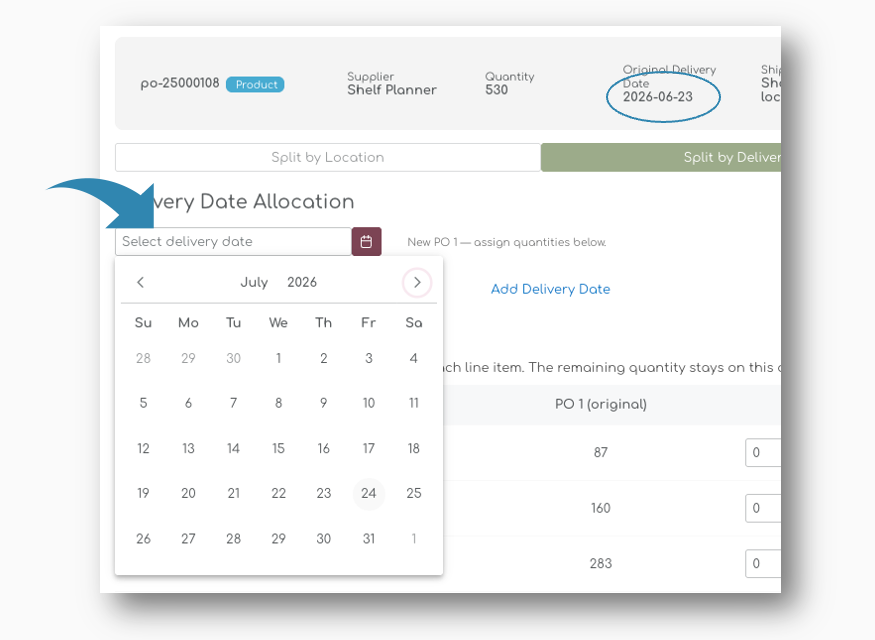
In the top of the page, you will find the original delivery date and you can set the new delivery date for the new order by selecting the date in the calendar:
Additional Delivery Dates
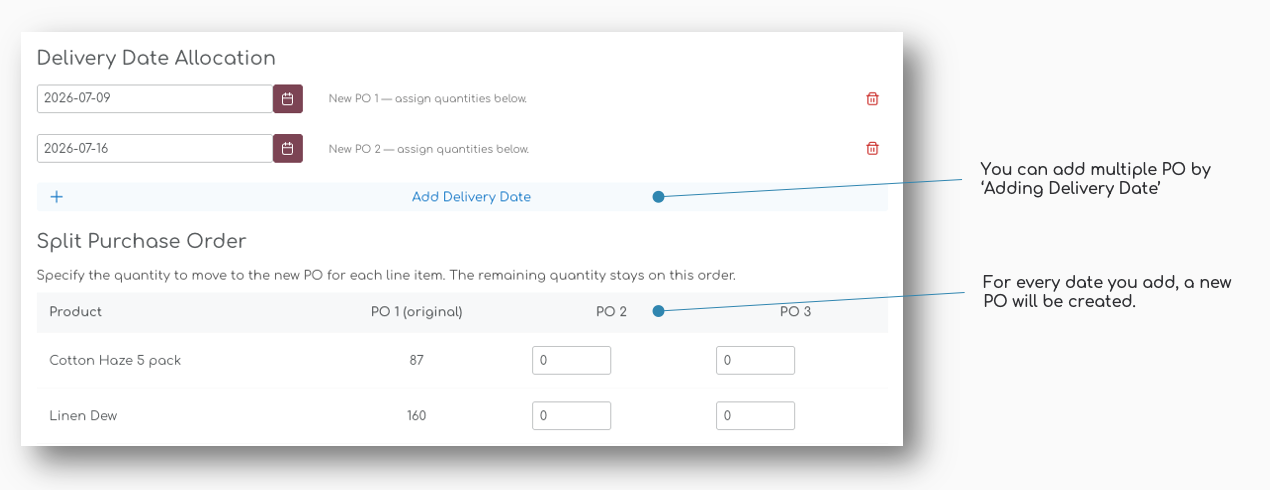
There is no limit to how many new 'Child' orders you can create. You can create an additional PO by simply hit the 'Add Delivery Date':
4. Allocate Quantities to new PO
When you have entered the new delivery dates, you can allocated quantities to the new PO by entering the number in the columns:
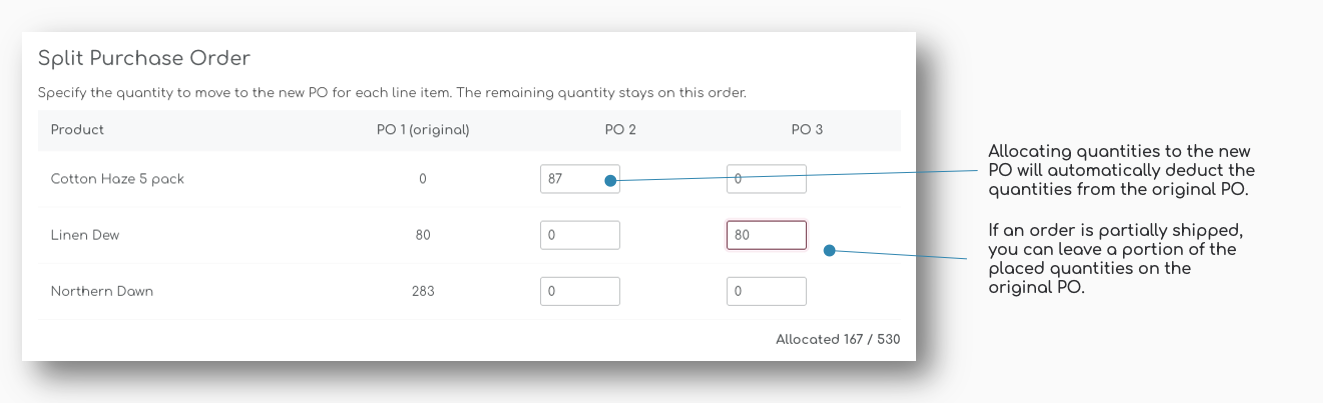
The alllocated quantities for the original and the new PO's will be automatically recalculated. It is possible to keep a portion of the original quanitites on the original PO and a portion to the new PO's.
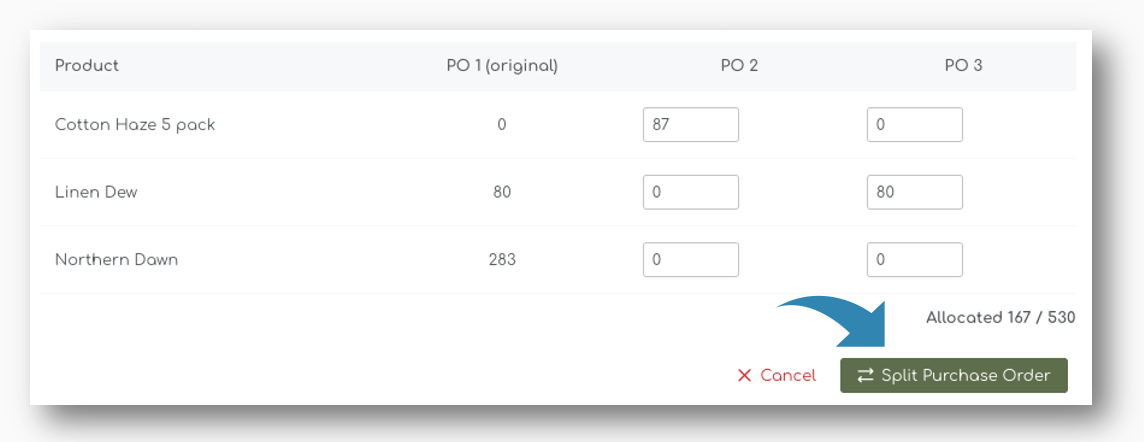
When you have allocated the quantities to the new 'Chilld' PO's, you can 'Split the Purchase Order at the bottom of the page.
5. Split PO's
After splitting the PO's, the new PO's are shown in the Order History with a newly created Purchase Order ID.
This ID is linked to the original PO number, so you can easily track it back to the original PO.
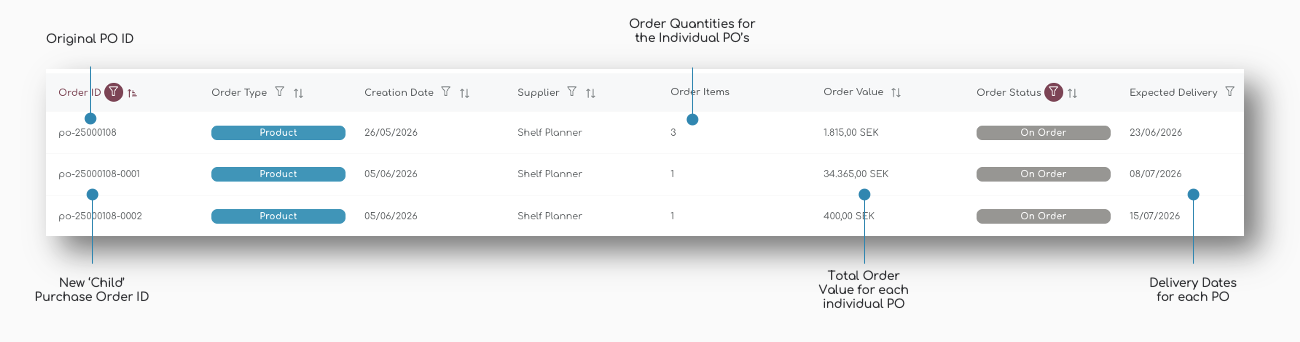
Purchase Order ID
For each of the newly created PO's an ID is automatically generated including the original 'parent' ID, and a unique 'child' ID - in this example po-25000108-0001, -0002, etc.
Order Quantities
The order quantities represents the line items in the PO. The original PO will always show the initial order lines, even if you move the entire quantity to a new PO.
Order Value
The Order Value is automatically recalculated based on the quantities and cost price for the items allocated to the new PO's.
Delivery Dates
Each PO will have its own Delivery Date. You can still update these for each of the PO's when editing the order.
5. Update Purchase Order
You can always update a newly created PO in the same way you can edit other PO's.
However, it is not possible to split a 'Child' order. Only so called 'Parent' PO's can be split.